
ClaudIA QGISyour AI

Your AI operating the QGIS that’s open on your computer.
Describe the task in one message. The AI opens the layers, runs the processing, applies the style and builds the layout in the open project, and you see every change on screen.
Address to add to your AI
https://comunidade.agronomos.ia.br/api/mcp/qgis- 129 tools
- 112 people connected
Free: 7 ClaudIA QGIS requests, no card, to use within 30 days of your first plugin token.
Back at the office
The map and the sampling grid, in your QGIS.
- QGIS tools
- 129
- QGIS tools
- plugin installs
- 110
- plugin installs
- computers with the plugin per account
- 5
- computers with the plugin per account
Tutorial
See how to get started, step by step.
How to connect ClaudIA QGIS
A 4-step tutorial, in the order the connection happens: the plugin in QGIS, the free account and the token in the community, the token pasted into QGIS and the connector in your AI. At the end, your AI operating the open QGIS, in split screen.
1:51
Animated ClaudIA QGIS tutorial. Step 1: in QGIS in English, the Plugins menu opens "Manage and Install Plugins…", the Settings tab gets a check in "Show also Experimental Plugins", the search for "ClaudIA" finds ClaudIA QGIS and the "Install Experimental Plugin" button installs the plugin. The "ClaudIA QGIS installed" window opens with three steps; clicking "Connect now" opens "ClaudIA QGIS — Connect to the community", still without a token, and the "Open my community page to generate the token" button leads to the community. Step 2: on the "Create account" tab, signing up is a chat with ClaudIA (name, email, role, area, WhatsApp, AI experience and password); the account is created and a confirmation email arrives. In the "Connection token" section, the "GENERATE A TOKEN FOR A QGIS" button shows the masked token, which is copied. Step 3: back in QGIS, the token is pasted into the same window and "Save and connect" turns the button green: "ClaudIA · CONNECTED". Step 4: the connector URL is copied from step 03 of the site and pasted into "Add custom connector" in your AI, with the name ClaudIA QGIS; the community sign-in opens, then the "Autorizar a sua IA?" screen (still in Portuguese), with the yellow warning about an app registered less than 24 hours ago, and clicking PERMITIR (allow) leaves ClaudIA QGIS connected. In practice, in split screen, the AI gets two requests and QGIS carries them out: the 3 pivots of Fazenda Exemplo appear on the map with their area in hectares (121.96, 116.18 and 100.73 ha) and their names as labels, and then they are colored by the mean NDVI of Oct 20, 2026 (0.37, 0.63 and 0.66), from red to green. At the end, "Your AI operating your QGIS." with the address agronomos.ia.br/en/solutions/qgis and the note "Free trial, no card · AI subscription separate".
Not a chat that hands you instructions. It’s the AI working in your QGIS.
With the free ClaudIA QGIS plugin, your AI reads the layers, fields and coordinate system of the open project and uses QGIS’s own tools to do the work.
- Open SHP, GPKG, GeoJSON, KML, CSV, GeoTIFF and web layers (WMS, XYZ)
- Apply styles and labels; calculate areas in ha with the field calculator
- Run clip, buffer, dissolve, IDW and sampling grids in Processing
- Extract the mean NDVI of each field (zonal statistics)
- Build print layouts and PDF atlases, saved on your computer
- Execute heavy processing in the background, without freezing QGIS
Output: the change in your project · files saved on your computer
Ask like this
“Clip this layer to the farm boundary and calculate each field’s area in hectares.”
Tools it uses
- ping
- get_project_info
- get_layers
- get_layer_features
- execute_processing
- set_layer_style
- get_canvas_extent
- list_layouts
- + 121
What it offers
What ClaudIA QGIS delivers
| What it offers | Example request | In your AI |
|---|---|---|
| Project and layers | ||
| Open and organize layersVector, raster and web layers; groups and order | open the field shapefile and the NDVI | Offers |
| Style and labelsColors by value, fill, outline, labels, QML | color the fields by yield | Offers |
| Project and coordinate systemCreate, open, save and change the CRS | move the project to SIRGAS 2000 UTM 22S | Offers |
| Data | ||
| Attribute tableCalculate, create, rename and delete fields; statistics | calculate the area of each field in ha | Offers |
| Select and edit featuresBy expression or by location, with undo | select the fields above 50 ha | Offers |
| RasterRaster calculator, zonal statistics, values at points | mean NDVI per field | Offers |
| SQLOn the open layers and in a PostgreSQL database | sum the area per crop | Offers |
| Processing | ||
| QGIS algorithmsClip, buffer, grid, spatial join, models, in batch | make a grid with 1 point every 2 ha | Offers |
| Heavy processing in the backgroundNo time limit and QGIS stays responsive | run the interpolation in the background | Offers |
| Maps and safety | ||
| Print layoutMap, legend, scale bar, atlas; exports to PDF or image | build an A4 map and export it to PDF | Offers |
| Restore pointSaves the project before the changes and goes back if needed | create a restore point first | Offers |
| Session scriptWhat was done, in Python, to repeat later | export what we did as a script | Offers |
Use cases
Send one request. Get the answer, ready to use.
Conversations reconstructed from real ClaudIA QGIS outputs. Pick a request.
The message
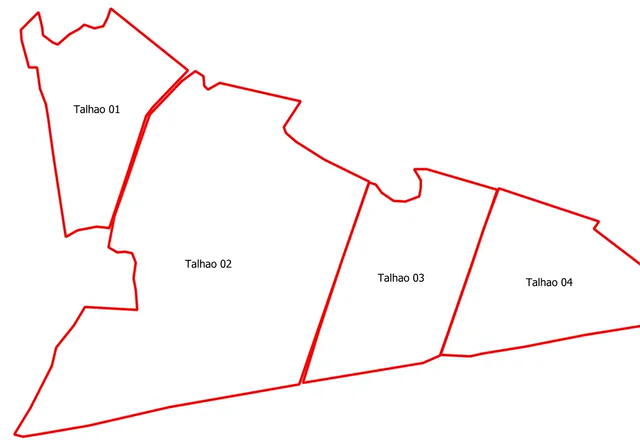
In the QGIS I have open, set the fz1_talhoes layer to no fill, with a 0.8 mm red outline, and label each field by name.
Your AI used
execute_code→style and labels
The answer
Done: no fill, a 0.8 mm red outline and a label with each field’s name. The change is already in your QGIS.
Changes to the project
- fz1_talhoes: no fill, 0.8 mm red outline, labeled by name
The message
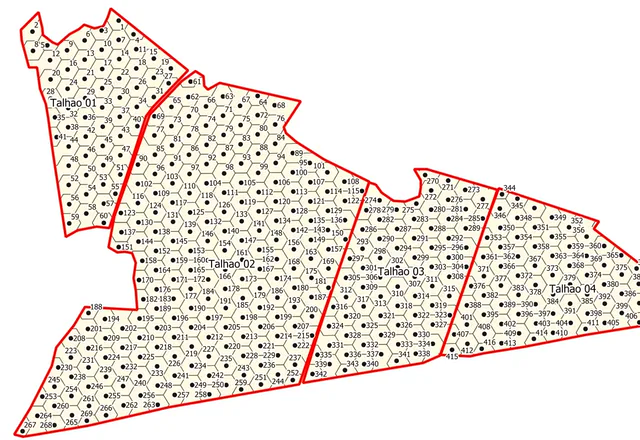
Calculate each field’s area in hectares and build a 1 ha sampling grid, with one point per hexagon.
Your AI used
execute_code→area_ha columnexecute_code→416 points
The answer
Areas in the new area_ha column: 59.44, 209.69, 73.14, and 70.70 ha (412.98 ha in total).
The grid is in the project: 416 points, one per 1 ha hexagon.
Changes to the project
- fz1_talhoes: no fill, 0.8 mm red outline, labeled by name
- area_ha column: 59.44 · 209.69 · 73.14 · 70.70 ha
- 1 ha hexagonal grid and 416 sampling points
Reconstructed from the real recording of Sep 23, 2026, on a 412.98 ha farm, in Claude (recorded in Portuguese). In the recording, the AI used the execute_code tool. Reconstructed, condensed conversation: the request is an example; your AI’s wording and chart may vary.
Examples
What you can do with ClaudIA QGIS.
Real requests on the demo account, from the request to the result. The videos have background music: tap the speaker to hear it.
- 0:00 / –:––
Soil sampling grid
One request in your AI and the open QGIS builds a grid of 1 point every 2 ha inside the pivots, numbers the points and exports the KML for your phone.
1:05Video in Portuguese
- 0:00 / –:––
A4 PDF map and atlas by pivot
One request in your AI and the open QGIS lays out an A4 map with the NDVI, labeled pivots, legend, scale bar, north arrow and title, exports the PDF and builds an atlas with one map per pivot.
1:02Video in Portuguese
- 0:00 / –:––
Planting rows and gaps from a drone
One request in your AI and the open QGIS traces the planting rows of a 5 cm orthomosaic and marks the gaps longer than 0.5 m, with the numbers and the validation status.
1:01Video in Portuguese
Real output
No retouching: what ClaudIA QGIS actually returned.
Real recordingSep 23, 2026 · in Portuguese
Video captions:
- The request: style and labels on the fz1_talhoes layer. Claude asks for permission to use the tool.
- In QGIS, the layer gets no fill, a red outline and each field’s name.
- New request: each field’s area in hectares, in a new column, area_ha.
- New request: a 1 ha hexagonal grid inside the fields, with numbered points.
- In the project: the grid and 416 points, one per 1 ha hexagon, across the 4 fields (412.98 ha).
What you need
What each solution needs to work
In your AI there are two subscriptions: the solution and the AI you already use. ClaudIA Geo on WhatsApp needs no AI.
| Requirement | ClaudIA Satin the Kit | ClaudIA Climain the Kit | ClaudIA QGISR$39.90/mo | Comunidade 10Xin Pro | ClaudIA Geo on WhatsAppR$49.90/mo |
|---|---|---|---|---|---|
| Subscription | |||||
| ChatGPT or Claude subscriptionseparateOr another AI that supports connectors (MCP), bought directly from its company. Which plans accept connectors is up to each AI. | Needed | Needed | Needed | Neededto use it in your AI; on the site, not needed | Not neededClaudIA Geo answers right in the chat |
| Account and connection | |||||
| Community accountFree, no credit card | Needed | Needed | Needed | Needed | Neededcreated right in the chat |
| Add the connector to your AIJust once: you paste the connector address | Needed | Needed | Needed | Neededto use it in your AI | Not needed |
| On your computer | |||||
| QGIS 3.28 or newer, openFree at qgis.org | Not needed | Not needed | Needed | Not needed | Not needed |
| ClaudIA QGIS pluginFree in the official QGIS repository; connects with a token generated in the community | Not needed | Not needed | Neededup to 5 computers | Not needed | Not needed |
| Your data | |||||
| The farm boundaryKML, KMZ, GeoJSON or a zipped shapefile; saved once, then you just call the farm by name | Needed | Neededor just a point (latitude and longitude) | Not neededuses the layers in your project | Not needed | Neededor your phone location, or a map link |
| WhatsApp on your phone | Not needed | Not needed | Not needed | Not needed | Needed |
| To get started | |||||
| To try it | 7 daysmoney-back guarantee | 7 daysmoney-back guarantee | 7 requestsfree, no card | 7 daysmoney-back guarantee | 7 requestsfree, no card |


How to connect
Three steps from sign-up to your first request.
- 01
Create your account and generate the token
Free, no card. Signed in, generate the plugin’s connection token on the community’s ClaudIA QGIS page: your trial starts then, with 7 requests to use within 30 days (on a paid plan, unlimited requests).
Generate the token(opens in a new tab) - 02
Install the plugin and paste the token
In QGIS 3.28 or newer, go to Plugins › Manage and Install Plugins › Settings, check “Show also Experimental Plugins” and install ClaudIA QGIS. Then, from the ClaudIA button on the QGIS toolbar, choose “Connect to the community…” and paste the token.
- 03
Connect your AI
In your AI, add a custom connector (MCP) with this URL and sign in with your community account. In Claude, it’s under Connectors; in ChatGPT, in developer mode; in other compatible AIs, in their connectors section.
https://comunidade.agronomos.ia.br/api/mcp/qgis
There’s a free step-by-step lesson in Portuguese, “Conectando a comunidade no QGIS” (Connecting the community to QGIS). The plugin runs on up to 5 computers; on the AI side, up to 2 connections, each in a different AI.
The AI does the work.
You stay in control.
A checkpoint before changes
The AI changes your project. Before a series of changes, ask for a checkpoint: it saves the project’s state, not the data in the files; keep a backup.
You see and approve
In the recording, Claude asked for permission before making changes; that depends on your AI and your settings.
Heavy jobs run in the background
Long processing runs as a background task: QGIS doesn’t freeze, and you can follow the progress.
The session script
Ask, and the AI exports a Python script of what was done in the session, to keep or repeat.
The 129 tools in ClaudIA QGIS
These are the names your AI sees.
46 read-only · 83 change the project. They come from the open-source QGIS MCP server, with descriptions in Portuguese, plus one of our own.
Connection and diagnostics10
- ping
- diagnose
- list_qgis_instances
- get_qgis_info
- get_message_log
- list_plugins
- get_plugin_info
- reload_plugin
- get_setting
- set_setting
Project, checkpoints and session11
- get_project_info
- load_project
- create_new_project
- save_project
- get_project_variables
- set_project_variable
- set_project_crs
- create_checkpoint
- list_checkpoints
- restore_checkpoint
- export_session
Layers: open, organize, coordinate system23
- get_layers
- add_vector_layer
- add_raster_layer
- add_web_layer
- remove_layer
- find_layer
- create_memory_layer
- set_layer_visibility
- zoom_to_layer
- get_active_layer
- set_active_layer
- get_layer_tree
- create_layer_group
- move_layer_to_group
- set_layer_property
- get_layer_extent
- get_layer_info
- get_layer_schema
- duplicate_layer
- set_layer_order
- get_layer_crs
- set_layer_crs
- get_raster_info
Attributes, selection and editing24
- get_layer_features
- get_field_statistics
- add_features
- update_features
- delete_features
- update_feature_geometry
- start_editing
- commit_edits
- rollback_edits
- get_edit_status
- undo_edits
- redo_edits
- select_features
- get_selection
- clear_selection
- field_calculator
- get_unique_values
- add_field
- delete_field
- rename_field
- add_table_join
- identify_features
- evaluate_expression
- validate_expression
Processing and analysis19
- execute_processing
- list_processing_algorithms
- get_algorithm_help
- create_processing_model
- list_processing_models
- run_model
- get_processing_providers
- execute_processing_batch
- start_processing_job
- get_processing_job
- cancel_processing_job
- raster_calculator
- zonal_statistics
- sample_raster_values
- spatial_join
- execute_sql
- transform_coordinates
- batch_commands
- execute_code
Symbology, labels and themes11
- set_layer_style
- set_raster_style
- set_simple_symbol
- get_layer_labeling
- set_layer_labeling
- apply_style_qml
- save_style_qml
- get_map_themes
- add_map_theme
- remove_map_theme
- apply_map_theme
Map canvas and bookmarks10
- get_canvas_extent
- set_canvas_extent
- get_canvas_screenshot
- get_3d_screenshot
- get_canvas_scale
- set_canvas_scale
- render_map
- get_bookmarks
- add_bookmark
- remove_bookmark
Print layout and atlas13
- list_layouts
- export_layout
- create_layout
- add_layout_map
- get_layout_info
- add_layout_label
- add_layout_legend
- add_layout_scalebar
- add_layout_picture
- add_layout_table
- configure_atlas
- export_atlas
- remove_layout
Databases and export8
- list_connections
- create_postgresql_connection
- list_connection_tables
- add_layer_from_connection
- import_layer_to_connection
- execute_connection_sql
- export_layer
- export_kml
Plans
Free
R$0
Free: 7 ClaudIA QGIS requests, no card, to use within 30 days of your first plugin token.
10 ClaudIA credits per month, up to 5 a day
Create a free accountPro · ClaudIA QGIS or the all-in-one Pro plan
was R$49.90, nowLaunch price
R$39.90/mo
7 free requests · no card needed
ClaudIA QGIS with unlimited requests, with the free plugin on up to 5 computers. Monthly plan only; cancel anytime. Pro, with all 5 solutions and the community, is R$149.90/mo on the annual plan.
Unlimited requests, no credits used
Subscribe(opens checkout in a new tab)See pricingFor a team or a client project: see Business.
Questions about ClaudIA QGIS
What do I need to install?
Requirements: QGIS 3.28 or newer · the free ClaudIA QGIS plugin, from the official QGIS repository (it’s experimental: in the plugin manager’s Settings, check “Show also Experimental Plugins”) · your community token.
Can the AI mess up my project?
It does change the project, so ask for a checkpoint before a series of changes: it saves the project’s state and lets you go back. The checkpoint doesn’t save the data in the files, so keep a backup.
On how many computers?
The plugin runs on up to 5 computers, with one token for each. On the AI side, you can have up to 2 connections per solution, each in a different AI.
Which AI do I need?
Any AI that supports MCP, the open standard for connecting tools to AIs: Claude, ChatGPT (via developer mode), Codex and others. Each AI decides which of its plans support connectors: check yours before you subscribe.
Is there a free trial?
Yes: the free account gets 7 ClaudIA QGIS requests, to use within 30 days of your first plugin token, once per account. A request is whatever you ask your AI, however many tools it uses to do it. On a paid plan, requests are unlimited.
Ask your QGIS for the next map.
Free: 7 ClaudIA QGIS requests, no card, to use within 30 days of your first plugin token.